How to open a CT or MRI CD at home: step by step
Got a CD after your CT or MRI scan but can’t open it? Here is what is on the disc and three ways to view your images — on Windows, Mac and tablets.
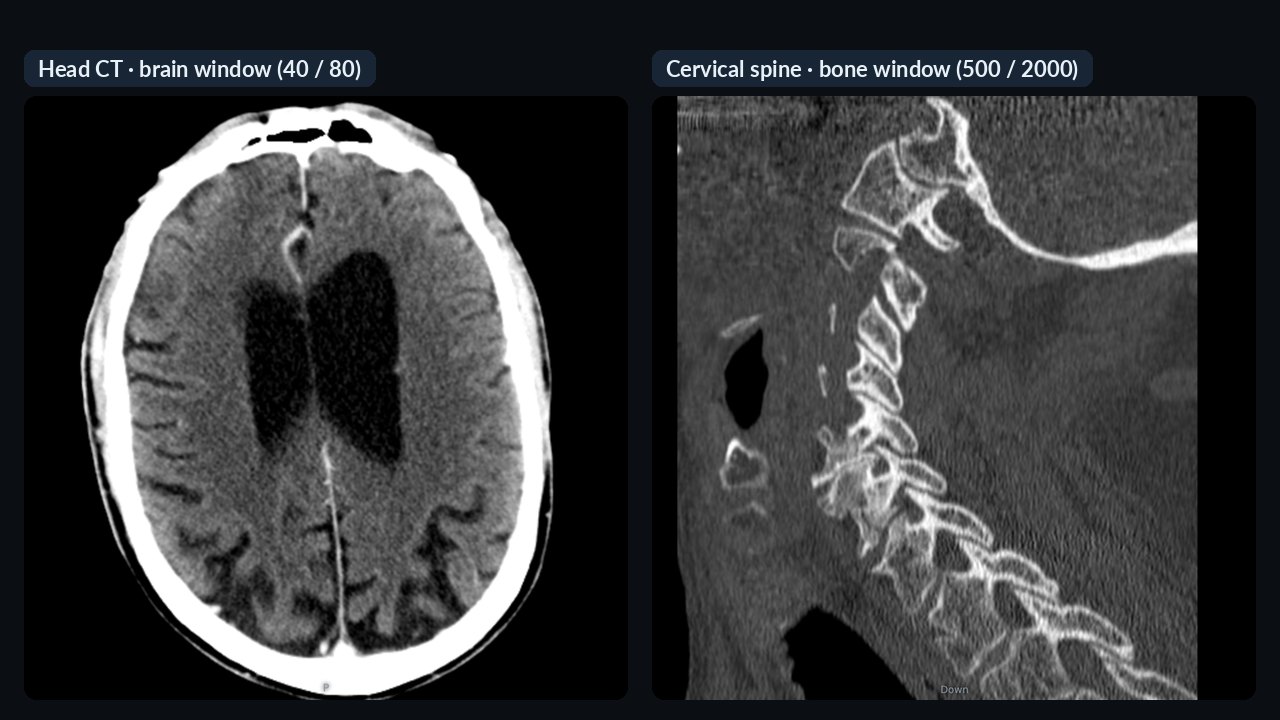
What is on the CD?
Hospitals and imaging centers burn your scan in DICOM format — the standard format for medical images. On the disc you will usually find:
- a file called DICOMDIR — the table of contents,
- folders (e.g.
DICOM,IMAGES,PA000000) with many files, often without a file extension (IM0001, IM0002 …) — these are the image slices, - often a Windows viewer program (
.exe) and sometimes the report as a PDF.
A CT or MRI study consists of hundreds or even thousands of slices in several series (different planes, sequences, with and without contrast). That is why it doesn’t open with a double-click like a photo.
Option 1: in your browser, nothing to install
The simplest way, and it works on Windows, Mac and Linux. An online DICOM viewer opens the scan in your browser; a good one does not upload your files but reads them on your own computer.
- Insert the CD (on a laptop, use an external USB CD drive).
- Open the viewer and choose “Open a folder or CD”, then select the CD drive.
- The viewer picks out the DICOM files. If there are several series, choose the one you want to see.
- The scan opens in three planes; scroll through the slices with the mouse wheel and use the window buttons (bone, soft tissue, brain, lung) to adjust the contrast.
No CD drive? Copy the entire contents of the CD to a USB stick or a folder and open that. A ZIP file works the same way if you received your scan as a download link.
Option 2: the program on the CD (Windows only)
The viewer on the disc usually runs on Windows only, and often not on newer computers. Never run a program from a CD of unknown origin — an executable file can carry malware. If you received the disc directly from the facility that did your scan and you use Windows, this can work too.
Option 3: a free desktop viewer
If you look at scans regularly, an installed program is a good choice. Some well-known viewers that are free for personal use:
| Program | System | Note |
|---|---|---|
| MicroDicom | Windows | free for non-commercial use |
| RadiAnt DICOM Viewer | Windows (a macOS version exists) | trial version; a license is needed for longer use |
| Horos | macOS | open source |
| Weasis | Windows, macOS, Linux | open source |
Terms can change — check the program’s website before installing.
Common problems
- “No DICOM files found” — don’t select only the DICOMDIR; select the whole CD or folder.
- The image is black or grey — try another window setting (e.g. soft tissue or bone), or drag the mouse over the image to adjust contrast.
- Compressed scan — some facilities burn compressed images (e.g. JPEG 2000). Not every browser viewer opens these; a desktop program, or an image-sharing service that converts the scan on upload, will.
- Very slow on a phone — a CT can be several hundred megabytes; a computer or tablet is more comfortable.
- Scratched, unreadable CD — ask the facility that did your scan for a new copy or a download link.
Important: viewing at home is for information only. Interpreting the scan is the job of the radiologist and your doctor — they write the report and discuss it with you. If you need to send the scan to a doctor, don’t mail the CD: a secure sharing link is faster and records who opened it.
Frequently asked questions
How can I view my CT or MRI CD at home?
The easiest way is a browser-based DICOM viewer: insert the CD, choose “Open a folder or CD” and select the CD drive. The viewer picks out the images — no installation, on Windows and Mac.
What is a DICOMDIR file?
The table of contents of a patient CD: it lists which folder holds which study, series and slice. It is not an image itself — give the viewer the whole CD or folder.
Can I open a CT or MRI CD on a Mac?
Yes. The program on the CD usually runs on Windows only, but browser-based viewers and macOS viewers (e.g. Horos, Weasis) work on a Mac. If your Mac has no CD drive, use an external USB drive or a copy made on a USB stick.
Is it safe to run the program on the CD?
Only if you received the disc directly from the facility that did your scan. Never run executable files from a CD of unknown origin.
Is my scan uploaded to the internet when I view it in a browser?
Not with viewers that run locally: the file opens from your own computer and stays there. Choose a viewer that explicitly states this.