Sending a CBCT scan to the referring dentist — without a CD
The CBCT is done and the referring dentist or oral surgeon is waiting. Burning a CD is slow and the file is too big for email. What should a good way of sending do, and how does it work in three steps?
Why is sending a CBCT hard?
- It is large: a CBCT scan is 300–600 MB, too big for email.
- It is health data: it may only travel over a secure channel, to the clinician concerned.
- The recipient has to open it: the viewer on the CD often runs on Windows only — not on a Mac or a phone.
A detailed comparison of the channels (CD, email, cloud, image sharing): CD, email, cloud or an image-sharing service?
What should a good way of sending do?
- The recipient opens it without installing anything, in a browser, on any computer.
- Only the intended person can open it: verification, and the link expires.
- Every opening is logged.
- The recipient can download the original DICOM for their own planning software.
- The recipient does not have to pay or subscribe.
Three steps with Sinus3D
1. Upload
Drag in the CBCT folder, the contents of the CD or a ZIP file. The patient name and scan type are filled in from the DICOM; after upload the scan appears on the patient's card.
2. Share
- With a partner clinician: if you and the referring colleague have a mutually approved connection, share in one click; they get an email (and, if enabled, a push notification) without any patient data.
- With a link: Sinus3D emails the link, or you can copy it. The link opens with the patient's date of birth, locks after 5 wrong attempts, and expires after 7, 30 or 90 days or one year. You can add a note for the recipient.
3. Open
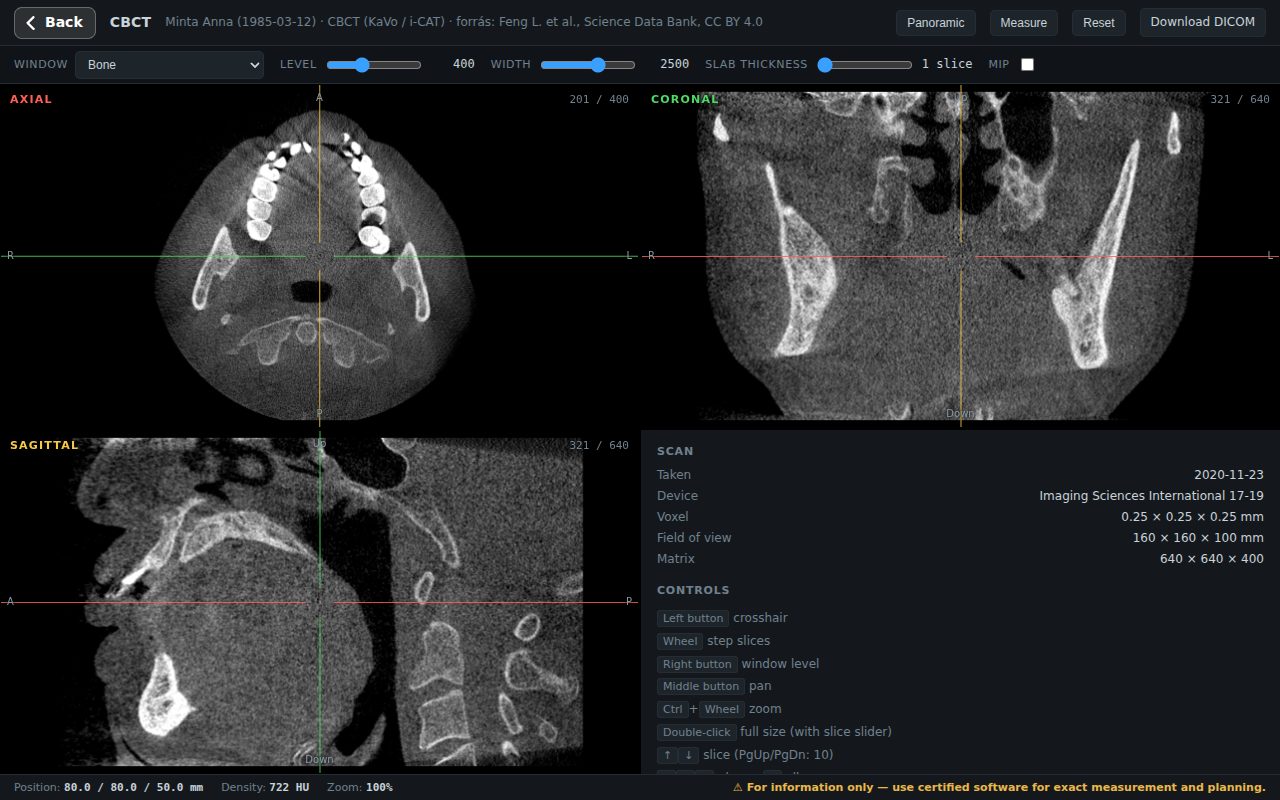
The recipient opens it in a browser, with nothing to install: the CBCT in three planes and along a panoramic curve, on a phone too, and can download the original DICOM file. Receiving clinicians currently use Sinus3D free of charge.
Legally: under the EU GDPR, sharing health data between treating clinicians for the patient's care can rely on Article 9(2)(h); national rules (e.g. in Hungary, Act XLVII of 1997, section 10) add conditions such as informing the patient. More: Legal background.
Browser viewing is informational; for treatment planning, download the original DICOM and open it in certified software.
Frequently asked questions
How can I send a CBCT scan to the referring dentist?
Upload it to an image-sharing service and share it with the colleague or send a protected link. In Sinus3D the colleague opens it in a browser with nothing to install and can download the original DICOM.
Why can’t I email a CBCT scan?
A CBCT scan is 300–600 MB, beyond email attachment limits, and plain email is not a secure channel for health data.
Does the receiving dentist have to pay?
In Sinus3D, receiving clinicians currently open and download the scans sent to them free of charge.
Can the referring dentist open the scan on a Mac or iPad?
Yes. Sinus3D runs in the browser, so it works on Windows, Mac, iPad and phones without installing a viewer.